A tour in eight steps
The screenshots below come from the sample vault in demo-vault/, with real Obsidian and the real plugin, in Live Preview.
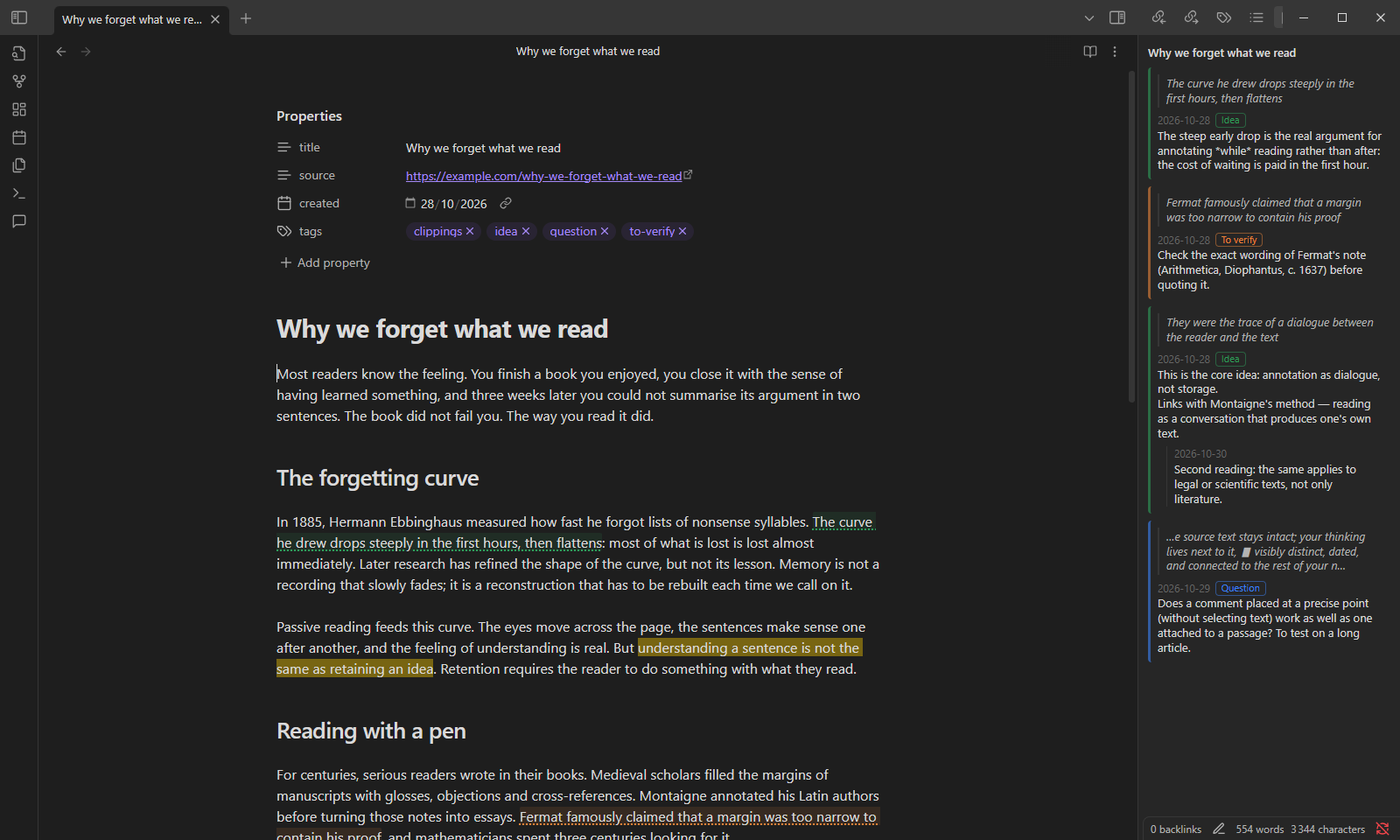
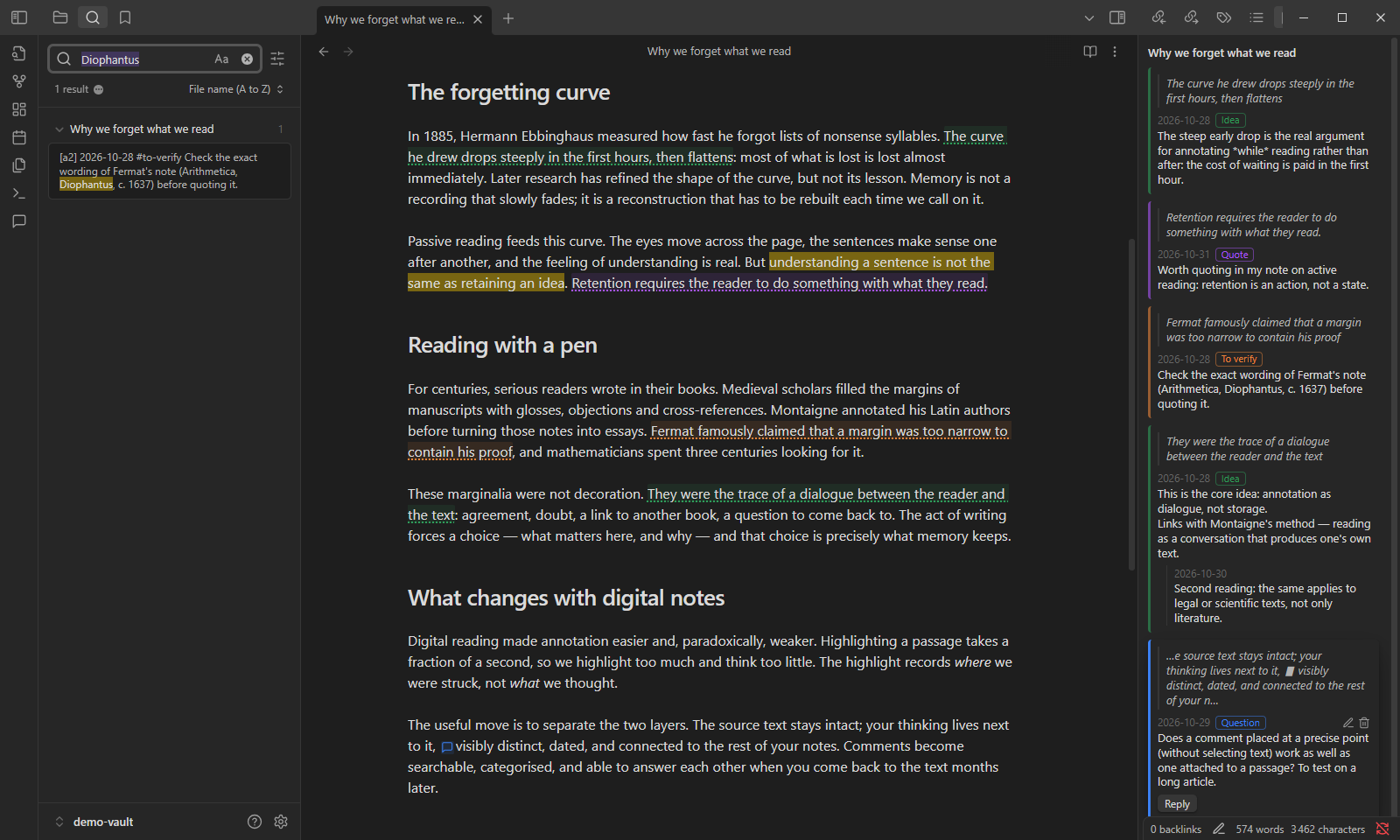
1. The text, and the thinking next to it. Commented passages get a light tint and an underline in their category’s colour. The Comments panel on the right lists every comment in text order, with the quoted passage, the date, the category and the replies. The note itself stays readable: no inline clutter, no footnotes to scroll to.
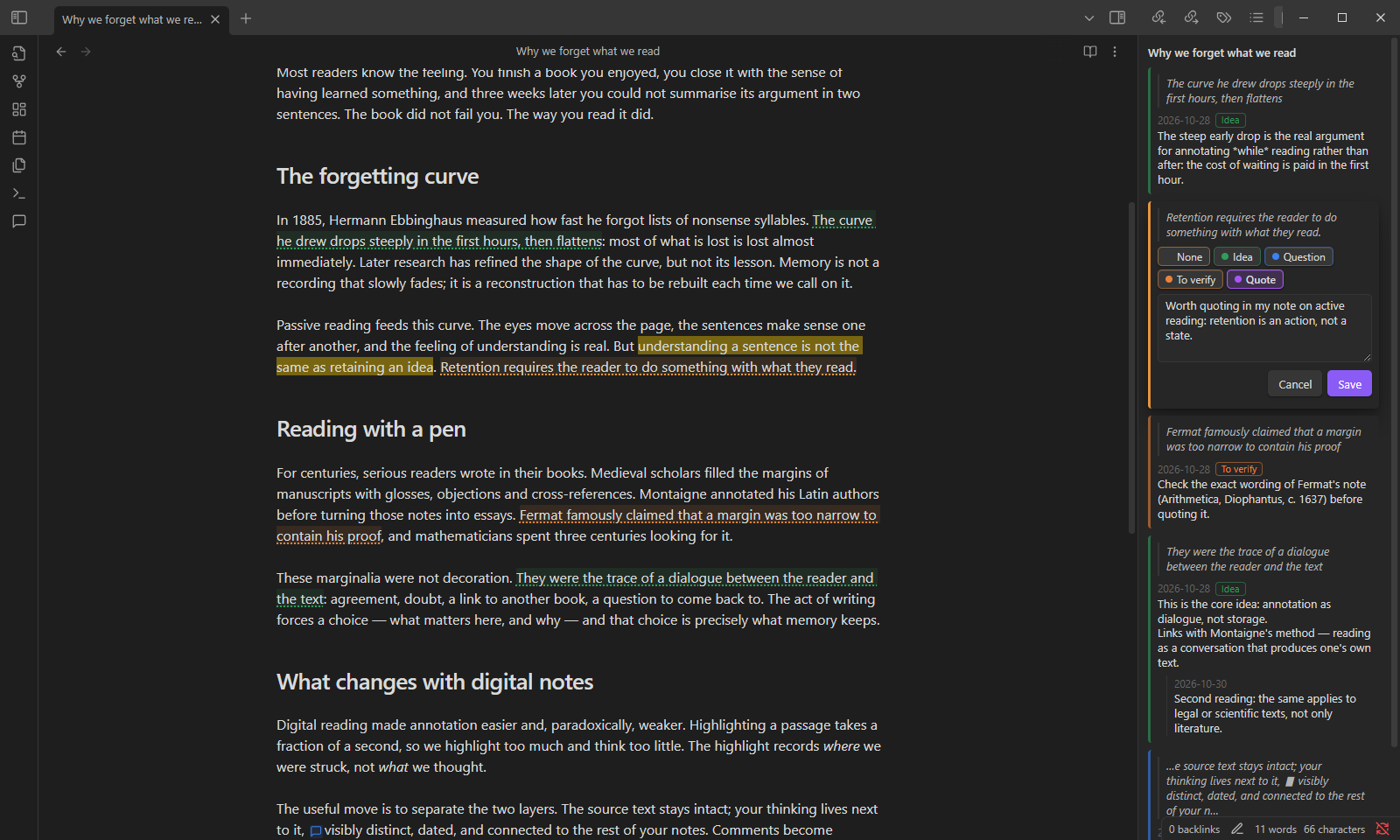
2. Writing without hiding the text. Select a sentence and run the command. The draft opens in the panel, beside the passage, not in a pop-up that covers it. Pick a category, write, then press Ctrl+Enter.
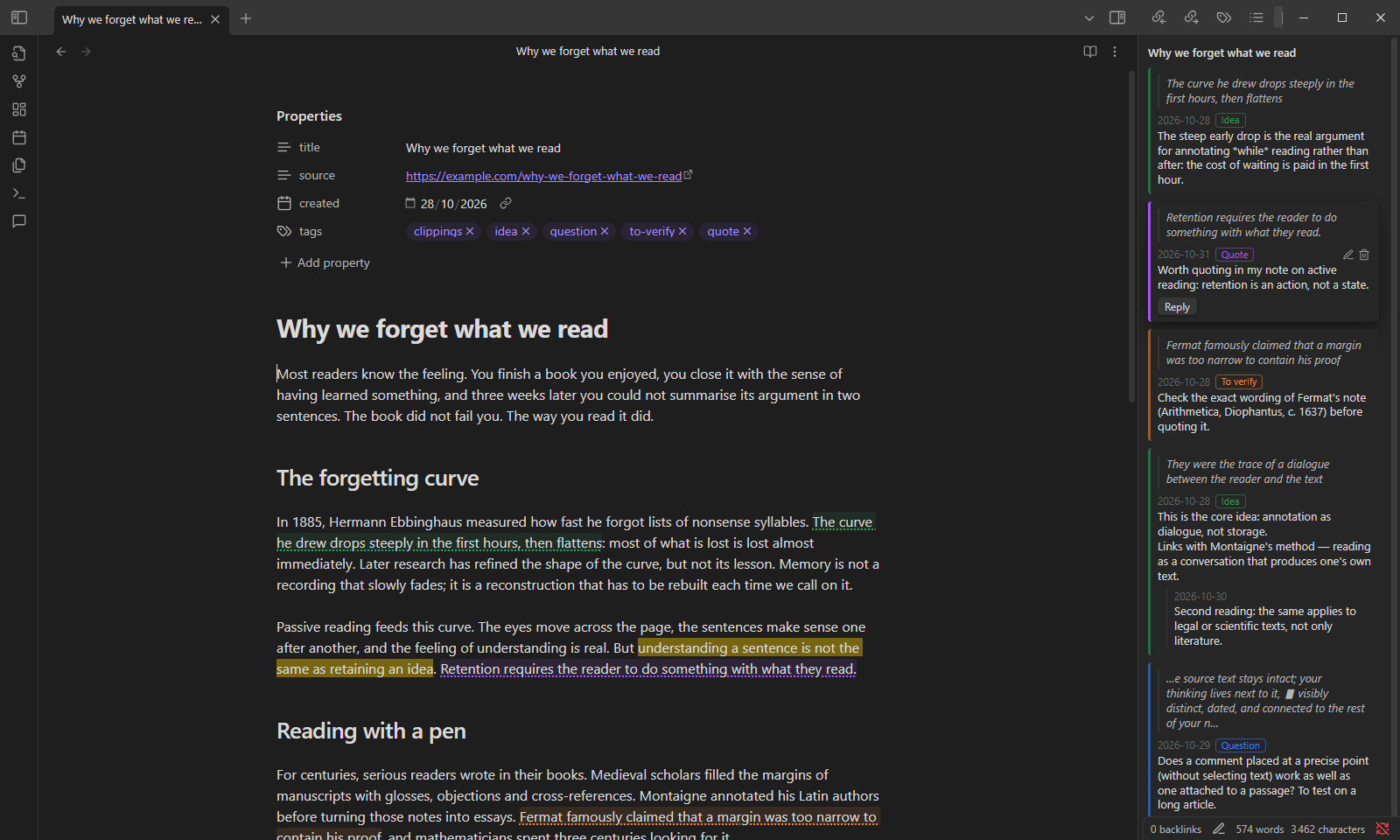
3. Metadata that follows your reading. Saving a comment in the Quote category added the quote tag to the note’s properties. Your reading now shows up in tag searches, the tags pane and Dataview queries, with no manual tagging. Remove the last Quote comment and the tag goes away, unless you had set it yourself.
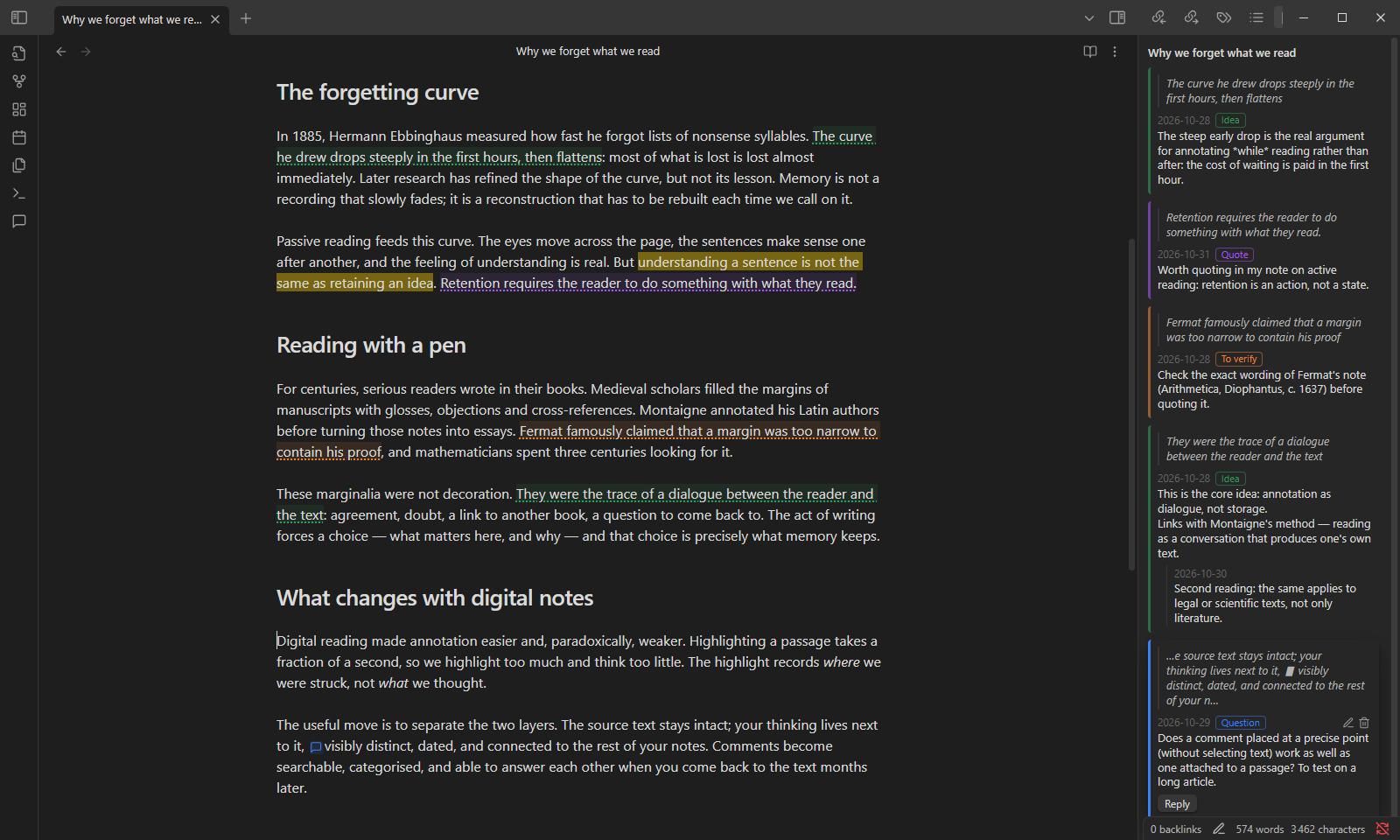
4. Commenting on a point, not just a passage. With no selection, the comment is attached to the cursor position and shows as a small bubble in the text. Click it, and the panel brings up its thread, along with a few words of context around the point.
5. Comments are searchable across the vault. Diophantus appears only in a comment, never in the article. Obsidian’s ordinary search still finds the note, because comments are plain text inside it.
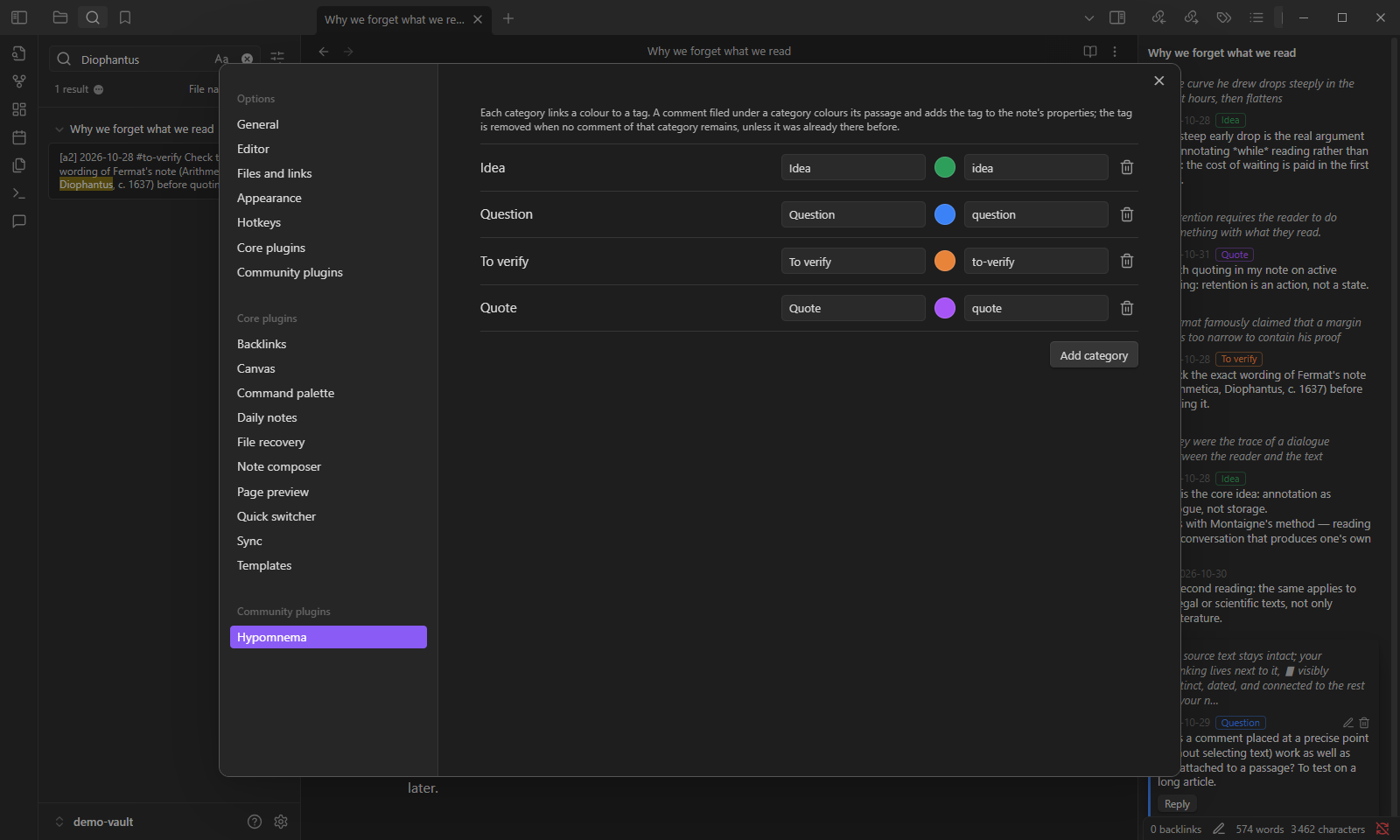
6. Your own categories. Each category is a name, a colour and a tag: Idea, Question, To verify, Quote, or whatever suits your way of reading.
Steps 7 and 8 are optional. Both are off until you turn them on, and neither changes how comments are stored. They exist for one reason: an annotation tool should help you take your thinking back, not keep it for you. Writing a comment hands a thought over to the machine; these two features are about getting it back, rereading it and reworking it. Florian Ernotte develops the idea, in French, under the name operational dispossession.
7. Comments in the margin. Turn on Comments in the margin in Settings → Hypomnema, or run the command Show or hide comments in the margin. Each comment then sits beside its passage, like a note pencilled in the margin of a book, in the colour of its category. Hover a note to highlight its passage; click it to open the thread in the panel, where you still write and reply. Margin content shows either the comment alone or the whole thread.
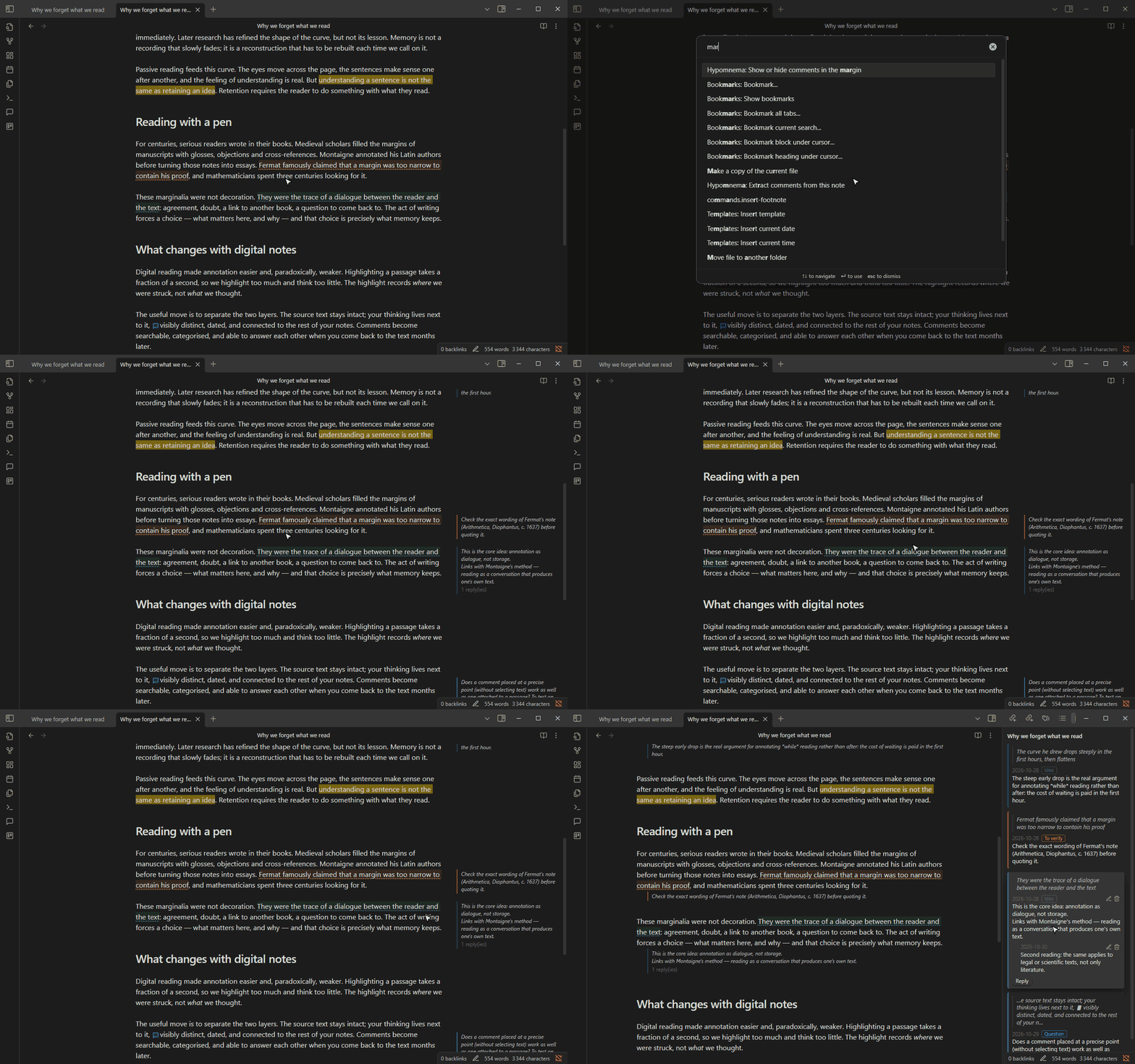
When the pane is too narrow for a margin (with the side panel open, or on a small screen), each comment moves below its paragraph instead.
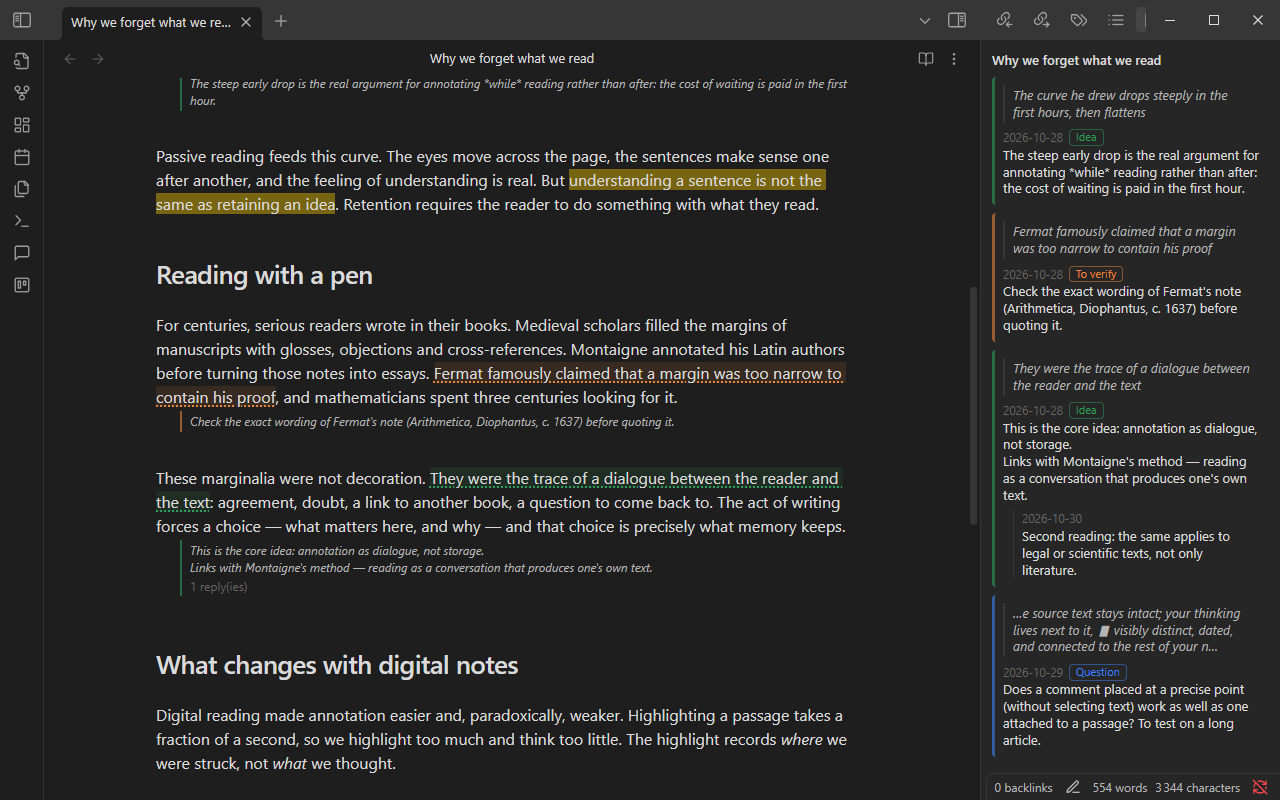
Why it matters: in the panel, your comments live in a tool beside the text. In the margin, you reread yourself while rereading the source, and the dialogue between the two stays in view.
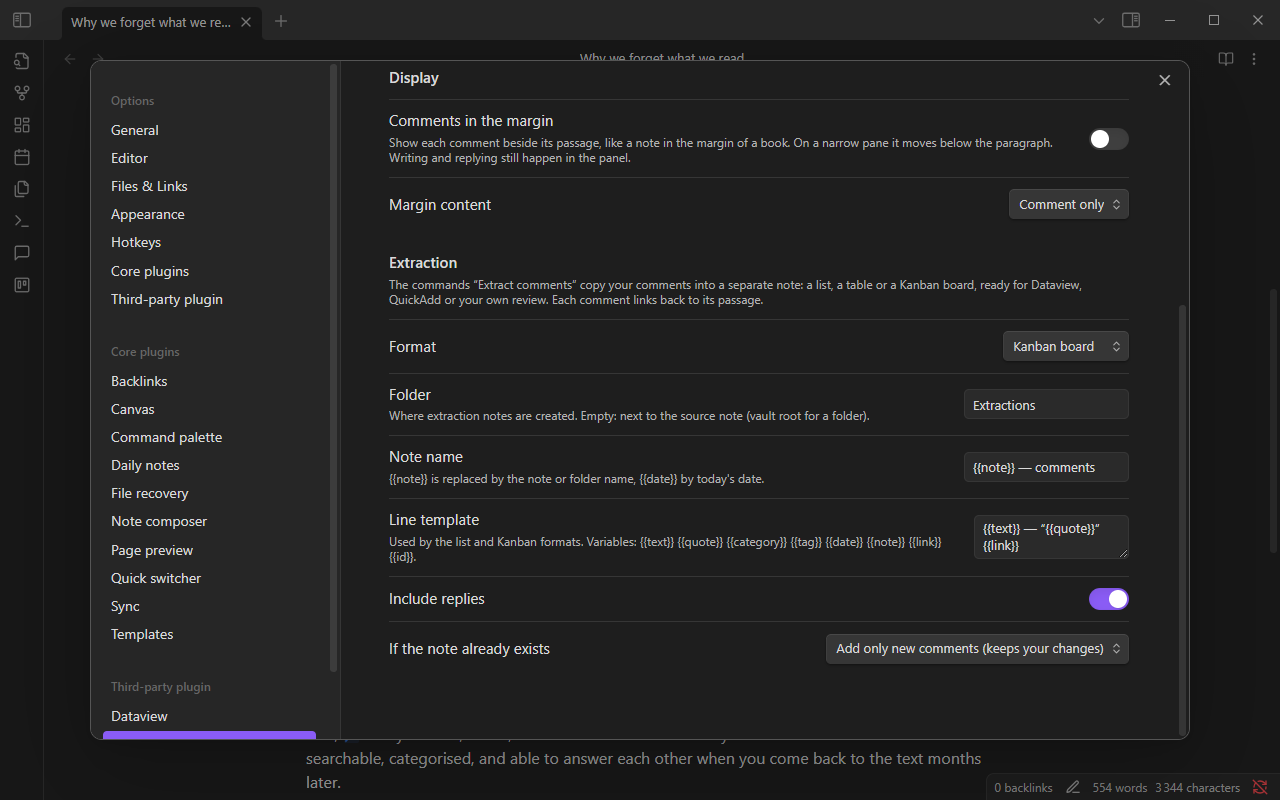
8. Extract your comments into a note. The command Extract comments from this note, or a right-click on a folder → Extract comments from this folder, copies your comments into a separate note. You choose the format: a list grouped by category, a table, or a Kanban board with one column per category and a Done column. Each comment ends with a ↩ link that reopens the source note and selects the passage. Running the extraction again only adds the comments written since: cards you have moved or ticked stay where they are.
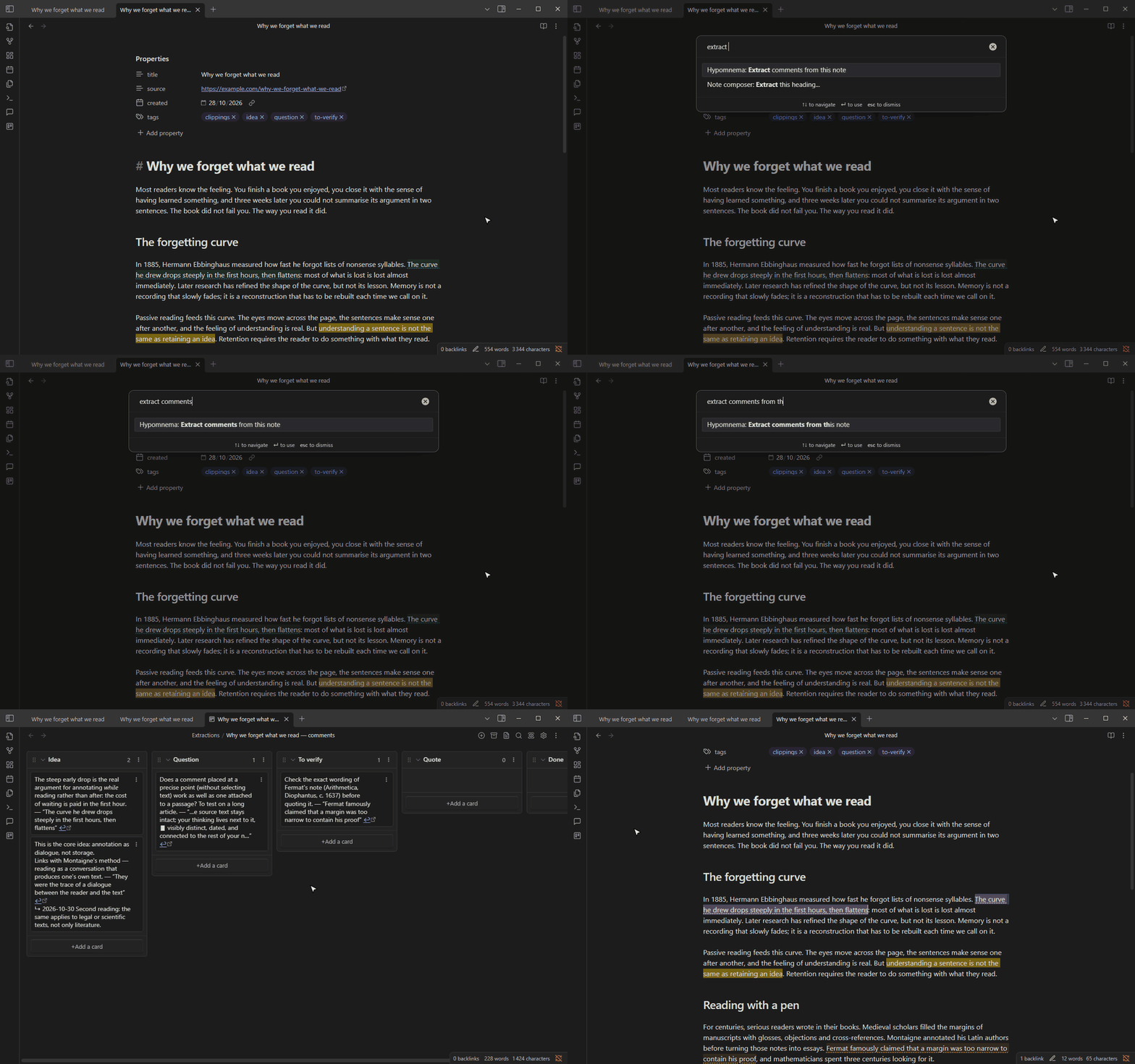
The format, the destination folder, the note name and the line template ({{text}}, {{quote}}, {{category}}, {{date}}, {{note}}, {{link}}…) are set in Settings → Hypomnema.
The extraction note carries properties (hypomnema-extract, hypomnema-source, hypomnema-date), so Dataview finds it, and its items are ordinary tasks. The integration pages give ready-made queries, a review board workflow and a QuickAdd macro.
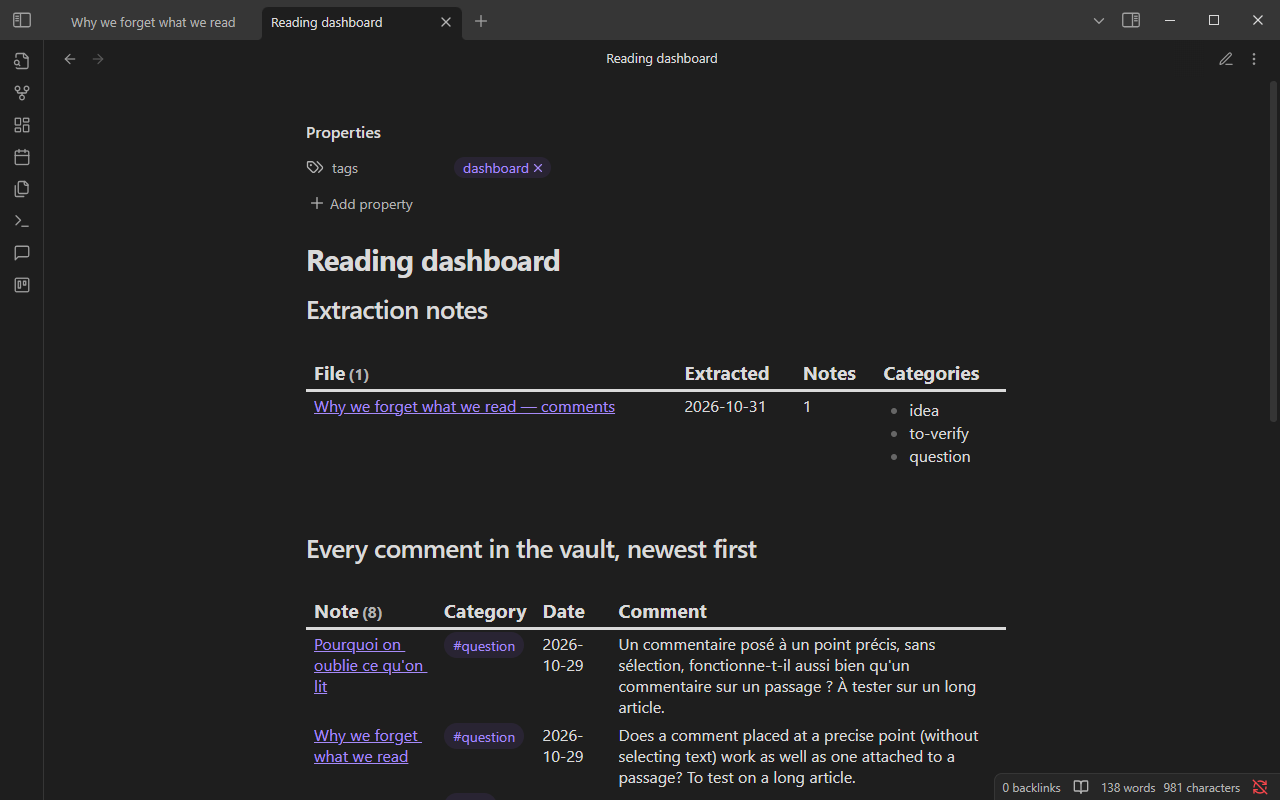
Why it matters: a comment is worth something only when you come back to it. Extraction turns your comments into material you rework: you sort them, drop some, turn others into tasks or into writing. Otherwise they stay as traces stored on your behalf.